The ZCWA robot vacuum uses the free Tuya Smart app. Pairing requires a 2.4 GHz
Wi-Fi network — the robot cannot see a 5 GHz band. Lift the robot off the dock, hold the charging
button for about three seconds until it beeps, then add it in Tuya under Small Home Appliances as
Robot Vacuum (Wi-Fi).
The one thing that goes wrong. Nearly every failed pairing comes down to the
network band. If the router publishes one name for 2.4 GHz and 5 GHz together, the phone will
usually hand the robot a 5 GHz connection it cannot use. Split the bands for five minutes, pair,
then merge them again.
Which app the BR151 uses
There is no ZCWA-branded application. The ZCWA robot vacuum and mop app is Tuya Smart, a free
platform used by a large number of smart home devices, and the robot is added to it as a generic
Wi-Fi robot vacuum. Some listings name Smart Life instead; it is the same platform under a
different label and either one works.
Pairing the BR151 with Tuya Smart
Put the phone on a 2.4 GHz networkThe BR151 cannot see a 5 GHz band. If the router broadcasts one name for both bands, split them temporarily in the router settings or switch the phone to the 2.4 GHz guest network for the duration of setup.
Install Tuya Smart and create an accountDownload Tuya Smart from the App Store or Google Play, register with an email address and log in. Allow the app location permission — Android will not scan for the device without it.
Take the robot off the dock and power it onPairing does not work while the robot is sitting on the charging dock. Lift it off, and make sure the power switch on the side is on.
Hold the charging button until it beepsPress and hold the charging button on the robot for about three seconds. A beep confirms it has entered pairing mode and the indicator will start flashing.
Add the device in Tuya SmartTap Add Device, choose Small Home Appliances in the left-hand list, and scroll to Robot Vacuum (Wi-Fi). Confirm the 2.4 GHz network name and type its password.
Wait for the pairing to completeThe app counts to 100 percent and the robot appears on the home screen showing battery level and cleaning time. Rename it to something obvious if there are other Tuya devices in the house.
Set a scheduleOpen the device in Tuya, go to the schedule screen and set the days and start time. A daily run while nobody is home is what this robot is built for.
Link Alexa or Google AssistantIn the Alexa app, add the Tuya Smart skill and log in with the same account, then run device discovery. For Google Home, add Tuya Smart under Works with Google. Voice commands then start and stop cleaning.
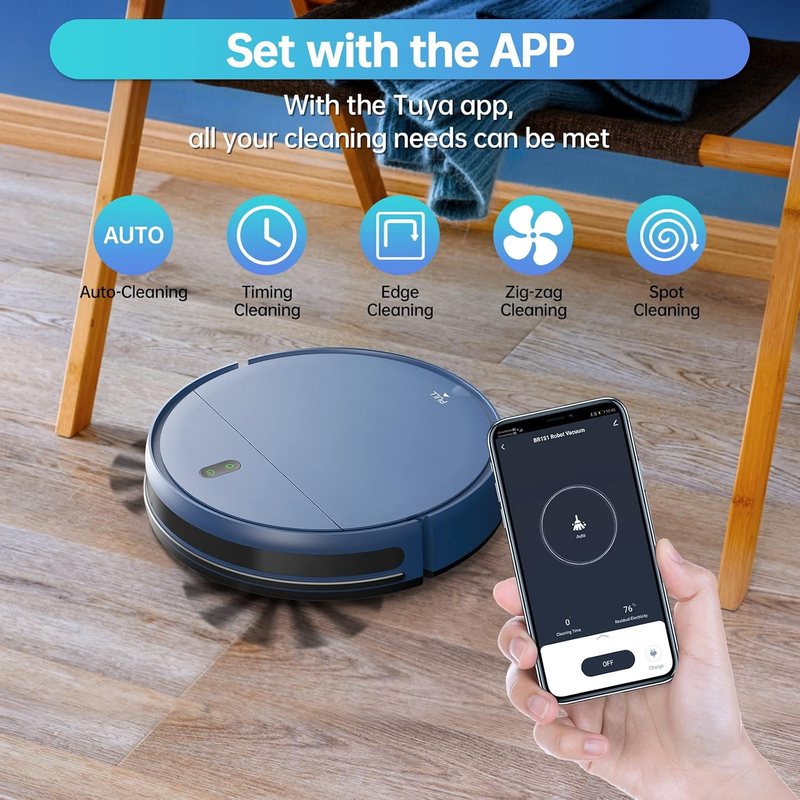
Auto, Timing, Edge, Zig-zag and Spot cleaning, all selectable from the app.
What the app can and cannot do
Tuya Smart features on the ZCWA BR151
Feature
Available
Start and stop a clean
Yes
Switch cleaning mode
Yes — Auto, Spot, Edge, Zig-zag
Weekly schedule
Yes
Manual driving
Yes
Water flow level
Yes — two levels
Battery level and cleaning time
Yes
Send to dock
Yes
Live map of the home
No — this model does not map
Room-by-room cleaning
No
Virtual walls and no-go zones
No
Firmware updates
Yes, when offered in the app
Voice control
Both Alexa and Google Assistant work through the Tuya account rather than directly with
the robot, so the robot has to be paired in Tuya first. In Alexa, enable the Tuya Smart skill, sign
in with the same credentials and discover devices. In Google Home, choose Works with Google and add
Tuya Smart. Commands are basic — start cleaning, stop cleaning, return to dock — because the robot
has no map to reference rooms against.
If pairing fails
Confirm the phone is on a 2.4 GHz network, not 5 GHz.
Check the Wi-Fi password character by character, including case.
Take the robot off the dock.
Grant Tuya Smart location permission on Android.
Hold the charging button a full three seconds and listen for the beep.
Move the robot within a few metres of the router while pairing, then move it back.
Restart the router, then try once more.
Still failing: email [email protected] with the model and order number.
App and connection FAQ
Which app does the ZCWA robot vacuum use?
Tuya Smart, free on iOS and Android. The BR151 is added under Small Home Appliances as Robot Vacuum (Wi-Fi). Some sellers also list the Smart Life app, which is the same platform under a different name and works identically.
Why will the ZCWA robot vacuum not connect to Wi-Fi?
The most common reason by far is a 5 GHz network — the robot only supports 2.4 GHz. After that, in order: the phone is not on the same 2.4 GHz network, location permission is off on Android, the robot is still sitting on the dock, or it was never put into pairing mode with a three-second hold on the charging button.
Does the ZCWA robot vacuum work with Alexa?
Yes. Once the robot is in Tuya Smart, enable the Tuya Smart skill in the Alexa app, sign in with the same account and run device discovery. Alexa can then start and stop a clean by voice. Google Assistant is supported the same way.
Can the robot be used without the app?
Completely. The button on the lid starts an Auto clean and the included remote covers modes, manual driving, scheduling and water flow. Nothing about the vacuuming or mopping requires an account or a network.
The robot keeps dropping off Wi-Fi. What now?
Usually the dock sits at the edge of the router's range. Move the dock closer, or add a 2.4 GHz mesh point or range extender near it and pair the robot to that. Re-pairing after a router password change is also required.
Does the app show a map of the home?
No. The BR151 does not build or save a floor plan, so the app shows status, battery, cleaning time, mode and schedule rather than a map. Room selection and virtual no-go zones are not available on this model.
Model BR151 · ASIN B0B81SWDL1
ZCWA Robot Vacuum and Mop Combo (Blue)
1400 Pa suction with a brushless intake, so long hair passes straight into the 0.2 L dustbin instead of winding round a roller
230 ml electronic water tank with two flow levels for laminate, tile, granite and sealed parquet
2500 mAh battery, roughly 100 minutes of cleaning and up to 1290 sq ft per charge, then it finds the dock on its own
2.87 in tall — clears the gap under most sofas, beds and kitchen kickboards